

Self Tracking Data Troubleshooting: Fixing Gaps, Errors, and Drift

Overview: common self tracking data issues you’ll notice first
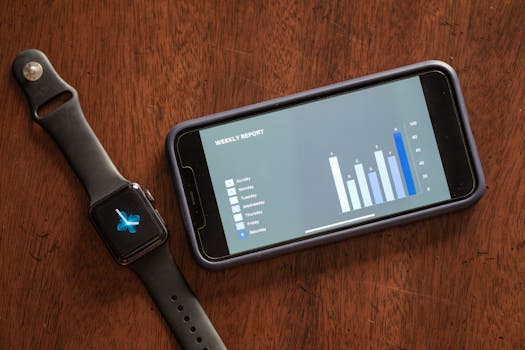
Self tracking is only useful when your data is consistent, complete, and trustworthy. When it breaks down, the symptoms are often obvious—either the numbers stop updating, they update at the wrong time, or they don’t match what you remember doing. If you’re seeing any of the following, you’re in the right place.
- Missing days or blank sessions: workouts, sleep, steps, or mood logs appear incomplete or not recorded at all.
- Out-of-order timestamps: entries show up hours (or days) later, or the timeline looks “scrambled.”
- Sync loops or stalled uploads: the app keeps trying to sync, but nothing new appears in your dashboard.
- Sudden metric jumps: step counts spike unrealistically, heart-rate readings drop to zero, or sleep stages change abruptly.
- GPS drift or inaccurate routes: runs and walks trace odd paths, speed looks wrong, or distance totals don’t match reality.
- Battery drain that wasn’t there before: your device heats up, drains quickly, or stops recording mid-session.
- Corrupted or unreadable exports: CSV/JSON exports won’t open, or the file is incomplete.
These issues usually share a few root causes: time settings, connectivity and permissions, sensor calibration, app storage/cache problems, or device firmware/state. The goal of troubleshooting is to narrow down which layer is failing (device, app, network, or account) and then apply the smallest fix that resolves it.
Most likely causes behind self tracking data problems
Before changing anything, it helps to understand where failures typically originate. In self tracking setups, data flows from a sensor (watch/phone/scale/ECG band) into a mobile app, then into a cloud service or local database. Any break in that chain can produce the symptoms above.
- Time and timezone mismatch: automatic time is disabled, timezone changes weren’t applied, or the device clock drifted. This commonly causes out-of-order entries and “missing” days.
- Bluetooth or background permissions: the app may not be allowed to run in the background, or the connection drops during sleep/workouts.
- Network instability during sync: Wi‑Fi/cellular switching, captive portals, or poor signal can stall uploads and create partial syncs.
- App cache or corrupted local database: after updates, storage pressure, or interrupted sync, the app can get stuck and stop writing new entries.
- Firmware/app version mismatch: device firmware updates or app updates can change data formats, leading to errors or missing metrics.
- Sensor calibration or environmental issues: GPS accuracy can degrade indoors, near tall buildings, or with cold battery behavior. Motion sensors can misread when worn differently.
- Battery/thermal throttling: if the device overheats, battery gets low, or power-saving modes kick in, recording can stop mid-session.
- Account or subscription sync constraints: some platforms limit features, exports, or syncing when account status changes.
With those in mind, proceed through the troubleshooting steps below in order. Start with the simplest fixes because they resolve the majority of issues without risking data loss.
Step-by-step troubleshooting and repair process
Use this sequence like a checklist. Stop when the issue clears, then verify with a short test session before you assume it’s fully fixed.
1) Confirm device and app time settings
Most timestamp problems are caused by clock drift or timezone mismatch.
- On your phone and tracking device, enable automatic date & time and automatic timezone.
- After changing settings, open the tracking app and wait for it to refresh.
- Check whether “missing” days reappear or whether new entries align with the correct time.
2) Check permissions and background activity
If your device records but the app can’t ingest data, you’ll see gaps or delayed uploads.
- In your phone settings, verify the tracking app has permission for Bluetooth and location (location is often required for GPS and sometimes for accurate activity context).
- Disable aggressive battery optimization for the tracking app (or set it to “Unrestricted”).
- Confirm background app refresh is enabled (iOS) or the app is allowed to run in the background (Android).
Then reconnect and start a short activity (even a 5–10 minute walk) to confirm entries appear with the correct timestamps.
3) Restart the connection chain (Bluetooth first, then app)
When syncing stalls, a clean reconnect often forces the app to rebuild the data session.
- Turn Bluetooth off, wait 10 seconds, then turn it back on.
- Close the tracking app completely (not just background it), then reopen it.
- Reconnect your device from the app’s device screen.
- Start a new session and watch whether metrics begin logging immediately.
If your platform supports it, trigger a manual sync after the session ends.
4) Verify network conditions during upload
Partial syncs often happen when uploads fail mid-stream.
- Try syncing on a stable Wi‑Fi network (avoid captive portals like hotel login pages).
- If you’re on cellular, briefly switch to Wi‑Fi and sync again.
- Temporarily disable VPN/private DNS if your network uses filtering that can block API calls.
After a successful sync, confirm that the app’s timeline shows the most recent session.
5) Clear app cache / reset local sync state (without losing your account)
When the app’s local storage is corrupted, new data may not write correctly.
- Update the tracking app to the latest version.
- If the app offers a “clear cache” option, use it.
- If the app requires uninstall/reinstall, export or back up any important local files first (if your platform supports local exports).
- After reinstalling, sign in to your account and allow a full sync.
This step is usually safe for account-based platforms because your historical data is often stored in the cloud. Still, if you rely on local-only data, back it up first.
6) Check firmware and update order
Some issues come from running mismatched firmware and app versions.
- Update your tracking device firmware from the app (if an update is available).
- Then confirm the phone app is also on the latest version.
- After updates, reboot your phone and reconnect the device.
If the problem started right after an update, give the system time to finish background sync, then test with a short session.
7) Re-check sensor-related settings (GPS, wear position, and calibration)
Accuracy issues are often not “data loss” but measurement drift.
- GPS routing errors: test outdoors with clear sky, wait a moment for GPS lock before starting the workout, and avoid starting recording while indoors.
- Heart rate drops: ensure the band/watch is snug and positioned correctly; clean the sensor area if it’s dirty or oily.
- Motion/step inconsistencies: confirm you’re wearing the device on the correct wrist/hand and that the profile settings match your body.
- Scale or bioimpedance oddities: use the same surface, consistent conditions, and avoid measuring right after a heavy meal or intense activity.
If your device supports calibration routines, perform them only as directed—over-calibrating can sometimes worsen results.
8) Look for power-saving interference during sessions
Battery saving features can stop background recording or reduce sensor sampling.
- During workouts or sleep tracking, keep the phone and device out of “ultra power saving” modes.
- Charge your tracking device above a safe threshold (commonly 30–50%) before longer sessions.
- After a session ends, keep the app open briefly to allow final writes and sync.
If your device heats up abnormally or drains extremely fast, stop troubleshooting and move to the repair/replacement guidance below.
Solutions from simplest fixes to more advanced repairs
Not every setup needs the same depth of troubleshooting. Use the sequence below to progress only when the earlier steps don’t resolve the problem.
Start with the low-risk fixes
- Re-enable automatic time and timezone on both phone and device.
- Restart Bluetooth and reconnect from within the tracking app.
- Sync on stable Wi‑Fi and avoid VPN/captive portals.
- Update app + firmware (in that order if possible).
- Confirm permissions for Bluetooth and location; allow background activity.
Next: app storage and data pipeline resets
- Clear app cache (if offered) and force a sync.
- Uninstall/reinstall the phone app if the local database is stuck—sign in again and allow time for a full resync.
- Re-pair the device if you see repeated sync errors or missing sessions after reconnect attempts.
Before re-pairing, make sure you can access your account and that you’ve verified recent data is already uploaded (watch the sync status indicators).
Advanced: factory reset or device replacement considerations
Factory resets are effective when the device’s internal state is corrupted, but they can be disruptive. Use them only after confirming you’ve tried the earlier steps.
- Factory reset the tracking device only if sync never recovers after firmware/app updates and re-pairing.
- After reset, reconfigure wear settings (wrist/hand, height/weight, activity goals) before testing.
- Perform a controlled test session (short walk + a sleep-like idle period) to confirm data flows end-to-end.
If the same issue returns immediately after reset, it’s less likely to be a configuration problem and more likely to be hardware-related (sensor failure, unstable radio, or battery degradation).
When replacement or professional help is necessary
Most troubleshooting can be handled at home, but there are clear signs that you should stop trying random fixes and move toward replacement or support.
- Data recording stops consistently at the same point (for example, always after 10 minutes) even after firmware/app updates and permission checks.
- Battery drains rapidly or the device overheats during normal use.
- GPS never locks outdoors or heart-rate sensors remain at zero despite correct wear and cleaning.
- Sync fails across multiple phones on different networks, suggesting the device is the problem.
- Exports remain corrupted or the app repeatedly crashes when opening logs you didn’t modify.
If you’re using a mainstream device ecosystem, contacting the platform’s support can speed things up. If you own a wearable brand that offers warranty coverage, keep screenshots of error messages and note the troubleshooting steps you already tried. That context helps them determine whether a warranty replacement is appropriate.
For those who rely on accurate self tracking data troubleshooting to maintain experiments and case studies, it can also be worth using reputable accessories that improve stability—such as charging cables that fit securely and are not intermittently loose. A weak connection during charging can contribute to firmware instability and interrupted recording, especially before long sessions.
Soft recommendation: if your data quality is critical for research-grade tracking, consider keeping periodic exports (when available) so you can restore your dataset even if you later replace the device. That reduces the “what if I lose everything?” risk while you troubleshoot.
10.05.2026. 02:00