

HRV Flatline Troubleshooting After New Wearable Setup

What an HRV “flatline” looks like after you set up a new wearable
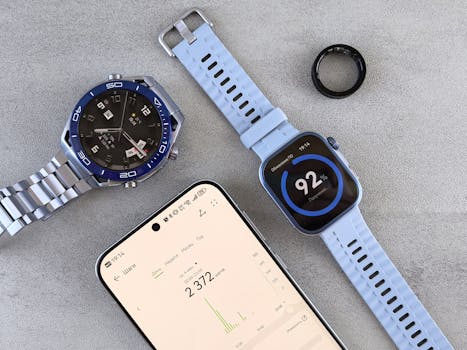
After you switch wearables (or even just change the way you wear one), it’s common to expect a smooth transition. HRV usually settles into a pattern quickly. But sometimes you’ll see an HRV flatline—long stretches where the number barely moves, stays at the same value, or appears “stuck” for hours or days.
In practical terms, you might notice one of these situations:
- HRV stays nearly identical (for example, repeating within a 1–5 ms range) even across different nights.
- HRV drops to a single low value and doesn’t recover after several sleep sessions.
- HRV readings appear only during certain windows (like late night) and then stop.
- Your sleep stage data looks normal, but HRV is flat or missing.
- HRV is flat right after setup—the first few days after you paired the device and started tracking.
This can be frustrating because HRV is often used as a trend signal for recovery, stress, or readiness. A flatline doesn’t automatically mean something is “wrong with you.” More often, it means the wearable isn’t collecting usable heart-rate variability data consistently—especially right after a new setup.
Most likely causes of HRV flatline after a new wearable setup
HRV depends on high-quality beat-to-beat intervals (RR intervals). If the watch or band can’t detect those intervals reliably, HRV can become artificially low, flat, or absent.
Here are the most common causes when you’ve just installed a new wearable setup.
1) Poor sensor contact or inconsistent fit
The sensor needs steady, close contact with your skin. A slightly loose strap, a watch worn too high or too low on your wrist, or a sensor area that’s not clean can reduce signal quality. Even if your heart-rate number looks “fine,” HRV can still fail.
Real-world scenario: You move from a slimmer band to a thicker one, or you wear the device one notch looser because it feels more comfortable. Your daytime heart rate updates, but HRV stays flat during sleep. After you tighten the strap by one notch and move it about 1–2 finger widths above the wrist bone, HRV starts varying again within 1–3 nights.
2) Skin conditions and sweat/cream interference
Hydration, lotion, sunscreen, sweat, and even dry skin can affect optical readings. If you apply moisturizer right before bed, or you have a new watch band that hasn’t been worn in yet, you may get inconsistent sensor signals.
3) You’re comparing HRV across different devices or algorithms
Even if two wearables both output “HRV,” they may use different measurement approaches (time-domain vs frequency-domain methods, different filtering, different baselines). A flatline can happen simply because the new wearable’s algorithm needs a few days of baseline data.
Still, a complete flatline for multiple days usually points to a signal-quality problem rather than “normal” algorithm differences.
4) Sleep tracking mode isn’t capturing stable data
Some wearables produce HRV only when they’re confident you’re asleep or in specific motion conditions. If you’re restless, sleeping in a position that blocks the sensor, or your wearable is set to a mode that limits HRV capture, you may see flat results.
5) App sync and permissions issues
If the wearable isn’t properly syncing, or if background permissions are restricted, you might see “stale” values repeated across sessions. This is especially common after phone updates or after you reinstall the app.
6) Battery saver settings or power management
On some phones, aggressive battery optimization can prevent the app from receiving timely data from the wearable. The result can look like HRV isn’t updating, or updates come late and appear “stuck.”
7) Firmware or calibration needs
Wearables sometimes need a firmware update or a short calibration period after a new setup. If you’ve paired a new device and skipped updates, HRV can remain unreliable until the system catches up.
Step-by-step HRV flatline troubleshooting after new wearable setup
Use this sequence. Start with the fastest fixes that improve sensor signal and data flow, then move toward more advanced steps like resetting sensors, reinstalling apps, or checking firmware.
Step 1: Confirm the flatline is real (not a display or sync delay)
Before you change anything, verify what you’re seeing.
- Open the wearable app and check whether HRV values update after a new sleep session.
- Look for the timestamp of the last update. If it hasn’t changed in 24–72 hours, you may have a sync issue.
- If the app shows partial data (heart rate, sleep stages) but HRV is flat, focus on sensor contact and HRV-specific settings.
Timeframe: Give it one full sleep session after you make changes. HRV is sensitive to consistency, but you should see improvement within 1–3 nights if the cause is fit/signal quality.
Step 2: Refit the wearable for optical sensor quality
This is usually the highest-impact fix.
- Clean the sensor area with a soft, dry cloth. If your band is oily or has residue, wipe it gently.
- Wear it snug. You should be able to slide it slightly, but it shouldn’t move around when you flex your wrist.
- Place it about 1–2 finger widths above the wrist bone (commonly where the sensor sits over a more stable blood vessel area).
- During sleep, try to avoid positions that press the back of the watch against a hard surface for hours.
Quick check: Start a 5–10 minute walk or light movement session and watch your heart-rate signal stability. If heart rate drops out or jumps, HRV will likely struggle too.
Step 3: Remove interference before bedtime
Do this for at least 2 nights.
- Skip lotion or heavy creams on the sensor area for the evening.
- Dry your skin thoroughly after showering.
- If you sweat heavily, gently wipe both skin and sensor before putting the wearable on.
This is especially relevant if you recently changed your routine after getting the new wearable—new skincare, a new detergent smell on the band, or a different bedtime time.
Step 4: Check sleep settings and HRV capture windows
In the app, look for settings related to sleep tracking, advanced sleep metrics, or HRV analysis. Some wearables require you to enable “sleep mode” or ensure that sleep tracking is turned on.
- Make sure sleep tracking is enabled in the app.
- If you use manual sleep start/stop, test using it consistently for one night.
- If the wearable has a “focus” or “accuracy” mode, enable it for a short trial.
If your wearable offers a “night” measurement mode, use it for 1–2 nights rather than during the day. It can allocate more processing to sleep HRV extraction.
Step 5: Verify permissions, background activity, and sync
HRV flatlines can be caused by data not arriving correctly.
- Check phone permissions for the wearable app: Health data, Bluetooth, and background activity.
- Disable battery optimization for the app (or set it to “Unrestricted”).
- Force-close the app once, reopen it, and confirm the wearable is connected.
- Let the app sync for 5–10 minutes while you keep Bluetooth on.
Practical example: You updated your phone OS, and now the app is restricted in background. HR and sleep data still show sometimes, but HRV updates are delayed or repeat. Turning off battery optimization for the app typically restores normal HRV variability within the next sleep session.
Step 6: Confirm firmware and app version are up to date
After a new setup, firmware updates can be pending. HRV processing may not run correctly until the wearable firmware and companion app are aligned.
- Open the app and check for wearable firmware updates.
- Update the phone app to the latest version.
- After updating, restart the phone and re-check the wearable connection.
Timeframe: Plan at least one full night after an update for HRV to “normalize.”
Step 7: Run a short signal-quality test during the day
Even if you care about sleep HRV, you can use daytime readings to diagnose sensor behavior.
- Wear the device for 30–60 minutes while you sit calmly.
- Then wear it during a short movement period (like walking for 10 minutes).
- Look for missing heart-rate data points, sudden drops, or erratic jumps.
If the sensor signal looks unstable during calm conditions, HRV will likely remain flat at night too. Fix fit and skin contact first.
Solutions from simplest fixes to more advanced fixes
Below is a progression you can follow. Don’t jump ahead until the simpler steps have had a chance to work.
Simple fixes (do these first)
- Re-tighten and re-position the strap (snug, 1–2 finger widths above the wrist bone).
- Clean the sensor and keep the area dry and lotion-free before bed.
- Check that sleep tracking is enabled and HRV metrics are not disabled.
- Keep Bluetooth on and let the app sync for 5–10 minutes after waking.
Intermediate fixes (if HRV is still flat after 2–3 nights)
- Try a different wrist if your wearable supports it. Some sensors behave differently depending on your dominant arm and circulation.
- Change band type or fit style (for example, a different strap material can improve comfort and contact). If you use a third-party band, make sure it’s compatible.
- Review app battery settings and disable battery optimization for the wearable app.
- Re-pair the device without fully resetting everything yet. In many apps, “unpair and pair” clears connection glitches.
Advanced fixes (if you still see a flatline after ~5–7 days)
- Update firmware and reinstall the phone app if updates don’t resolve it.
- Factory reset the wearable (only after you’ve tried pairing fixes). This can clear corrupted settings that affect HRV processing.
- Test with a different phone temporarily (if possible). If HRV works on another phone, the issue is likely permissions, OS restrictions, or app compatibility.
- Check for hardware wear: if the sensor window is scratched, dirty beyond cleaning, or the band is damaged, HRV can fail even while heart rate seems “okay.”
Soft recommendation: if you’re using a product ecosystem like Apple Health integration or Google Fit, ensure the wearable app is the primary source for HRV data and that you’re not mixing multiple data sources that overwrite values.
For example, if you use an all-in-one recovery app that imports HRV from your wearable, confirm that it’s reading the correct HRV metric and that it’s not defaulting to a cached value when new data doesn’t arrive.
When replacement or professional help is necessary
Most HRV flatline issues resolve with fit, app sync, or firmware updates. But there are cases where the device may be faulty or you need guided help.
Consider professional support if you see these signs
- HRV remains flat for 7+ days despite correct fit, clean sensor contact, and verified sync.
- Heart-rate signal repeatedly drops out even when worn snugly.
- Multiple users report the same behavior on the same wearable model, suggesting a device issue (if you can test with a friend).
- Firmware updates fail or the device repeatedly disconnects.
- Sleep data is present but HRV is consistently missing, not just flat. Persistent “missing HRV” can indicate a sensor processing problem.
Before you assume the wearable is broken
- Make sure you’re not expecting HRV to match old devices instantly. A new wearable may take 3–7 days to stabilize its baseline and filtering.
- Confirm you’re using the same wrist placement and strap tightness each night for at least 2 nights.
- Check that you’re not using a case or accessory that interferes with Bluetooth or background app behavior.
Soft guidance on replacement
If you’ve followed the steps above and the device still produces flatline HRV (especially alongside unstable heart-rate readings), it’s reasonable to contact the manufacturer’s support. They can run diagnostics and determine whether a replacement is appropriate.
Keep in mind that warranty processes often move faster when you provide:
- Dates/times when HRV flatlined
- Firmware/app versions
- Whether heart rate readings were stable
- What troubleshooting you already tried
Quick checklist you can use tonight
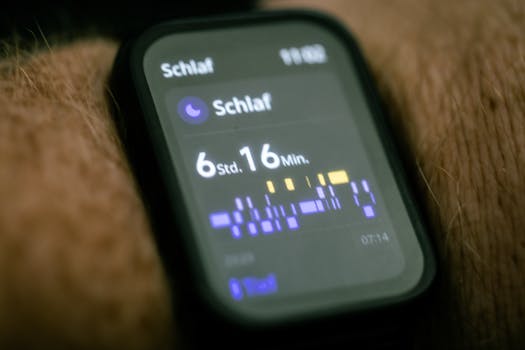
If you want a simple plan for your next sleep session, do this:
- Clean the sensor area and keep the skin dry.
- Wear the device snugly, placed 1–2 finger widths above the wrist bone.
- Skip lotion/cream on the sensor area for the evening.
- Enable sleep tracking and ensure HRV metrics are turned on in the app.
- After waking, open the app and let it sync for 5–10 minutes.
If HRV still flatlines, move to the intermediate steps: battery optimization checks, re-pairing, and verifying firmware updates.
What to do with your training and recovery decisions while HRV is flat
HRV flatline troubleshooting is about restoring a trustworthy signal. Until it stabilizes, avoid making big recovery decisions solely from that flat value.
Instead, you can use your other indicators as a temporary backup:
- Resting heart rate trends (if available)
- Sleep duration and consistency
- Subjective recovery (how you feel during warm-up)
- Training load and perceived exertion
Once HRV begins to show natural day-to-day variation again—often within a few nights after resolving fit/sync issues—you can gradually reintroduce it into your recovery routine.
How HRV flatline issues commonly resolve in real setups
Here’s a practical example pattern you may recognize.
You set up a new wearable on a Monday. On Tuesday morning, HRV is present but mostly flat. You tighten the strap slightly and reposition it above the wrist bone. You also remove lotion from your routine before bed. By Thursday night, HRV shows more movement, and the flatline disappears. The first two nights often capture transitional sensor behavior and app baseline filtering.
Another common pattern: HRV stays flat for several days after a phone update. Everything looks normal in the app, but HRV doesn’t update with the same timing as heart rate and sleep stage data. When you disable battery optimization and allow background activity, HRV starts updating normally the next morning.
These are both signal-quality and data-flow problems—not “you doing something wrong.” Troubleshooting simply helps the wearable collect the beat-to-beat intervals it needs to calculate HRV correctly.
HRV flatline troubleshooting after new wearable setup: final decision points
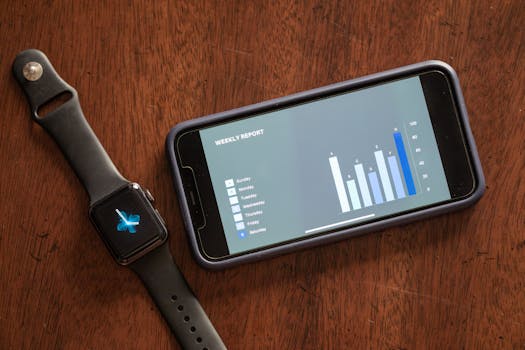
When you’re trying to fix HRV flatline troubleshooting after new wearable setup, your main goal is to restore reliable sensor contact and ensure the app receives and processes the data correctly.
Use a structured approach:
- If HRV is flat immediately after setup, prioritize fit, sensor cleaning, and sleep settings.
- If HRV is flat but heart rate looks erratic, focus on contact and band placement first.
- If HRV is flat and timestamps don’t advance, focus on sync, permissions, and battery optimization.
- If HRV is flat after 5–7 days despite consistent troubleshooting, escalate to firmware/app reinstallation and then manufacturer support.
Soft recommendation: once your HRV begins to vary again, keep your wearable placement consistent for at least a week so you can trust the trend rather than the individual day.
03.03.2026. 12:35