

HRV Flatline Troubleshooting After Wearable Change

Overview: what “HRV flatline” looks like after a wearable change
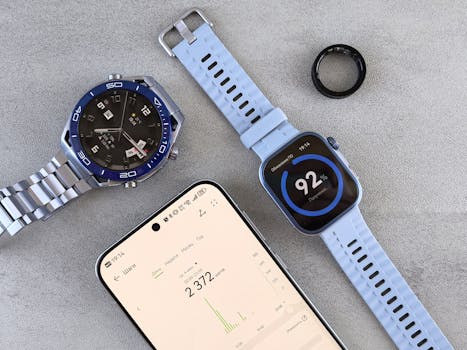
After you switch wearables, it’s common to expect your HRV (heart rate variability) to start tracking normally right away. But some users see something that feels wrong: HRV readings that suddenly become flat, identical values repeating day after day, or HRV graphs that look like a straight line for days.
When this happens, you may notice one or more of these symptoms:
- Your HRV graph becomes nearly horizontal (for example, the same number every night, like 12–13 ms, or a very narrow range).
- HRV “data points” appear, but they don’t reflect changes in sleep, stress, or recovery.
- Only one metric moves (like resting heart rate), while HRV stays frozen.
- HRV improves for a day or two, then drops into a flatline pattern again.
- Your wearable shows good heart rate quality, but HRV still doesn’t vary.
It’s tempting to assume the new device is broken. Often, it’s not. HRV is sensitive to how the sensor captures accurate beat-to-beat intervals, how you wear the device, and how the app processes data. A wearable change can disrupt any of those steps—even if the device feels comfortable and your heart rate looks “fine.”
Most likely causes of HRV flatline after switching wearables
HRV is not a single raw number pulled directly from the sensor. It’s computed from inter-beat intervals (IBIs) and then filtered, scored, and summarized by the app. When that pipeline is disrupted, HRV can flatline.
Here are the most common causes you’ll run into after changing wearables:
1) Sensor fit changed (even slightly)
HRV depends on consistent optical readings. If the new band sits a few millimeters higher or lower than your old one, or if it’s looser than before, you can get stable heart rate but inaccurate beat timing. That can lead to HRV values that don’t reflect real recovery.
Real-world example: you switch from a watch to a ring or a different wrist band. You wear it on the same wrist, but the new device’s underside is narrower. It still tracks your heart rate during the day, yet at night the HRV curve becomes flat because the sensor loses consistent contact when you move in sleep.
2) Wearing location differs
Even wrist-to-wrist differences matter. If you wear the new device on your dominant wrist instead of your non-dominant wrist, you may change circulation and movement patterns. More importantly, you might change where the sensor sits relative to major blood vessels.
Also consider whether you’re using the device on the inside of your wrist versus the outside. Many wearables perform best with the sensor centered on the inner wrist, about 1–2 finger widths above the wrist bone.
3) HRV needs a “settling” period in the app
Some apps don’t compute HRV immediately in the same way after a wearable change. You may need several nights (often 3–7) for the device to establish stable baseline patterns, especially if you changed sleep tracking behavior or if the app uses calibration windows.
During that time, HRV can look odd. But if it’s perfectly flat for 10+ days, you should treat it as a configuration or sensor issue rather than normal settling.
4) Different HRV definitions between devices
Not all wearables report the same HRV flavor. Some show RMSSD in milliseconds; others show SDNN; others display proprietary scores derived from specific filtering rules. A wearable change can make the values appear “stuck” if the new app is using a different processing approach or if it applies stricter quality thresholds before it reports HRV.
This doesn’t mean your HRV is truly identical. It means the app may only be able to compute HRV under certain conditions, and when it can’t, it may carry forward a limited set of values.
5) Low-quality signal filtering (especially at night)
Many devices discard HRV calculations when signal quality is low. If the wearable is receiving intermittent optical data, it may still show heart rate, but it may not compute reliable beat intervals. The app then may fill in with a default or minimum-quality-derived output—often appearing as a flatline.
Look for indicators like “low signal,” poor tracking, or reduced data coverage overnight. If your wearable’s heart rate remains stable but the HRV still flatlines, it’s a strong hint that beat-to-beat accuracy is the problem.
6) You changed settings that affect data capture
Common setting changes include:
- Heart rate monitoring mode (continuous vs. intermittent)
- Sleep tracking enabled/disabled
- Battery-saving mode
- Skin contact settings (some devices have “sweat” or “sensitivity” profiles)
- Firmware updates pushed around the time you switched
If you turn off continuous HR monitoring or enable a battery saver, HRV can quietly degrade. It may still produce numbers, but they can become uniform.
7) Skin, temperature, or swelling changed
Cold hands, dry skin, heavy lotion, or a loose band can all change optical signal quality. If you live in a cold climate or you’re wearing the band differently (for example, thinner clothing sleeves during sleep), HRV can flatline even when heart rate looks okay.
Step-by-step HRV flatline troubleshooting after wearable change
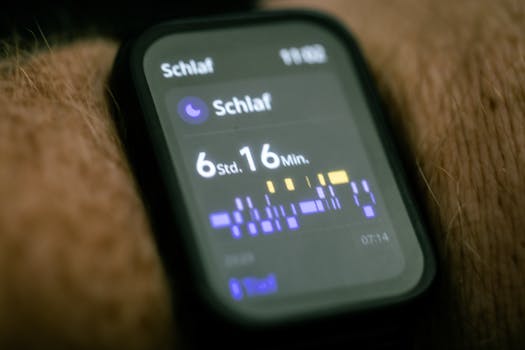
Use this sequence. It’s designed to catch the most frequent issues quickly: fit, signal quality, and app processing.
Try one step, then check the next overnight HRV result. Don’t change five things at once. HRV troubleshooting works best when you isolate variables.
Step 1: Confirm you’re looking at the right HRV metric in the new app
Before you assume the sensor is failing, open the new wearable’s app and verify what the HRV screen actually shows. Look for terms like RMSSD, SDNN, or a “recovery score.”
If the app provides multiple HRV views (night HRV, stress HRV, workout HRV), make sure you’re comparing the same type and time window you used previously.
What to do:
- Check whether the HRV is “night” or “24-hour.”
- Check whether the app has an option for “show HRV only when sleep is detected.”
- Confirm your time zone and sleep schedule are set correctly (especially if you traveled or changed time).
If you’re accidentally viewing a different HRV type, it can look flat even though the device is working.
Step 2: Re-seat the device for consistent sensor contact
This is the highest-yield fix. HRV needs stable optical contact for beat-to-beat timing.
Try this exact approach for 2–3 nights:
- Place the sensor on the inside of your wrist (the side with the pulse).
- Position it about 1–2 finger widths above the wrist bone.
- Tighten the band so it doesn’t slide when you move your hand, but still feels comfortable (you should not need to force it).
- During the day, do a 60-second check: look at the heart rate stability and whether the app shows good signal.
If your wearable has a “sensor cleaning” or “optical window” reminder, follow it. A film on the sensor can reduce beat-to-beat accuracy.
Tip: If you changed from a watch to a band, your old fit habits may not transfer. Many bands require slightly different tightness for stable optical readings.
Step 3: Validate signal quality during sleep
Flatline HRV often means the app isn’t getting enough quality data for HRV computation.
What to do:
- After you wake up, open the sleep summary and check any “signal quality” or “data completeness” indicators.
- Look for warnings like “poor signal,” “movement detected,” or “sensor disconnected.”
- If your wearable offers a “live” heart rate view, watch it for 30 seconds while you sit still, then while you gently move your wrist.
You’re trying to confirm that the device maintains a consistent optical signal when you’re not moving much. If it drops signal during sleep, HRV can flatline even though resting heart rate looks fine.
Step 4: Remove battery-saver and confirm continuous HR monitoring
On many wearables, HRV depends on continuous or near-continuous optical monitoring, especially at night.
Check these settings:
- Battery saver / power saving mode: turn it off for at least 3 nights.
- Heart rate monitoring: set to continuous or the highest accuracy option available.
- Sleep tracking: ensure it is enabled and scheduled correctly.
Then reboot the wearable and phone if the app allows it. A firmware glitch can keep the device in a reduced monitoring mode without obvious symptoms.
Step 5: Let HRV rebuild for 5–7 nights (but verify it’s not stuck)
After you fix fit and settings, give it a short window to re-establish processing. In most cases, you should see HRV start to vary within 3–7 nights.
How to judge “normal rebuilding”:
- You don’t need dramatic swings, but you should see at least some day-to-day variation.
- Your HRV should respond to obvious changes (like a very short sleep night vs. a full night).
- The values should not be identical down to the decimal place every day.
If the HRV remains flat for 10+ days after fit and settings are corrected, move to deeper fixes.
Step 6: Update firmware and app, then re-pair if needed
Wearable changes can leave the app in a half-configured state. Firmware updates often improve HRV signal processing and filtering.
Try this sequence:
- Update the wearable firmware to the latest version.
- Update the companion app on your phone.
- Restart your phone.
- Re-sync the wearable.
If HRV is still flat, consider removing and re-pairing the wearable in the app. Before you do this, make sure you won’t lose important settings like sleep schedule or activity goals.
Step 7: Check for conflicts with other sensors or apps
If you use multiple apps that read heart rate data (for workouts, sleep coaching, or fitness dashboards), they can sometimes interfere with how the wearable streams data.
What to do:
- Temporarily disable third-party apps that access heart rate/HRV.
- Test for 1–2 nights.
- If you use a workout mode with different settings, ensure it doesn’t reduce HRV capture.
This is especially relevant if you moved from one ecosystem to another (for example, from a brand’s app to a platform app).
Solutions from simplest fixes to more advanced fixes
Start here: the “quick wins” that resolve most flatlines
- Reposition the band (inside wrist, 1–2 finger widths above the bone, snug enough not to slide).
- Clean the sensor window with a soft cloth and ensure it’s dry before wearing.
- Turn off battery saver and set heart rate monitoring to continuous.
- Verify you’re viewing the correct HRV type (night HRV vs recovery score vs workout HRV).
- Give it 3–7 nights to rebuild, then reassess.
Next layer: settings and signal-quality troubleshooting
- Check sleep tracking is enabled and your schedule/time zone is correct.
- Try the other wrist for 2–3 nights if the wearable supports wrist switching. This can dramatically improve contact.
- Adjust band tightness in small increments. If you can slide the band with light finger pressure, it’s often too loose for HRV.
- Avoid thick lotion or sunscreen on the sensor area at night; wipe the skin if needed.
More advanced: re-pairing, firmware, and data pipeline fixes
- Update firmware and app before you judge performance.
- Reboot phone + wearable after updates.
- Re-pair the wearable to reset the data pipeline.
- Test in “clean mode”: temporarily disable third-party HRV/HR apps to isolate the wearable/app processing.
When to suspect the wearable itself
At this point, you’ve corrected the most common variables. If HRV still flatlines, you may have a hardware or manufacturing issue, or the wearable may be incompatible with your skin/sensor response.
Signs that point toward a device problem:
- Heart rate looks normal, but HRV is identical for many consecutive nights (for example, the same value every morning for 10–14 days).
- The wearable repeatedly reports poor signal quality at night even when it’s snug and positioned correctly.
- The device fails to produce meaningful HRV during different sleep positions (side vs back) and after trying both wrists.
- HRV doesn’t vary even when you intentionally create a big recovery difference (like a couple nights of late bedtime vs early bedtime).
When replacement or professional help is necessary
Replacement doesn’t have to be your first move, but you also shouldn’t spend weeks chasing a broken signal. Use the timeline below to decide.
Consider replacement or warranty support if:
- You’ve followed fit and setting steps for 7–10 nights and HRV remains flatline with no meaningful variation.
- Signal quality indicators show persistent low-quality tracking despite correct placement and snug fit.
- Firmware/app updates and re-pairing do not change HRV behavior.
- You can see HRV data points, but they appear quantized or identical down to the same number each day, not just “low variability.”
When to seek professional help (or at least medical guidance)
Wearables are not medical devices. Still, HRV flatline can be frustrating, and sometimes it overlaps with health changes. If you also experience symptoms like unusual palpitations, dizziness, chest discomfort, or fainting, you should contact a clinician. Don’t use HRV as the reason to ignore symptoms.
Also consider professional evaluation if you notice major persistent changes in your heart rate patterns that don’t match your normal baseline—especially if the wearable suggests abnormal readings beyond HRV (for example, frequent irregular heart rate flags).
How to document your case so support can help faster
If you contact support, you’ll get better results if you provide clear evidence. Keep it simple:
- List the dates of your wearable change and the date HRV flatline started.
- Note how many nights you tested after each adjustment (for example, “3 nights with tight fit,” “3 nights after disabling battery saver”).
- Include screenshots of HRV graphs and any “signal quality” indicators.
- Confirm firmware/app versions (support often asks).
Soft recommendation: if you’re using a wearable where HRV is a key feature for training or recovery, it’s worth leaning on the warranty process once you’ve done the practical checks. Many companies can confirm whether the sensor is underperforming.
Practical scenario: troubleshooting a flatline after switching from Watch A to Band B
Here’s a realistic scenario you might recognize. You owned Watch A for 6 months. Your nights usually showed HRV variation between about 20–45 ms. You switch to Band B because it’s lighter and you want better sleep comfort.
On day 1, Band B shows heart rate normally. Sleep data uploads. But HRV looks like a flat line at around 18 ms every morning. It doesn’t change whether you sleep 5 hours or 8 hours.
What you do:
- You verify the app: it’s showing “Night HRV (RMSSD).” Good—same metric type as before.
- You re-seat the band: sensor centered on the inner wrist, 1–2 finger widths above the bone. You tighten slightly so it doesn’t shift when you grab your phone.
- You disable battery saver for the next 3 nights and set heart rate monitoring to continuous.
- After 5 nights, HRV still reads the same value every day.
- You clean the sensor window and re-pair the band, then update firmware.
- After another 3 nights, HRV still flatlines, and the app flags low signal quality during sleep.
At that point, you have a strong case for replacement support. The pattern suggests the device isn’t capturing beat-to-beat intervals reliably at night. You’ve tested the likely causes—fit, settings, and software—and the output remains unchanged.
Extra checks that often explain “everything looks fine”
Sometimes the problem isn’t obvious because the wearable appears to work. Here are extra checks that can reveal the underlying issue:
- Band movement during sleep: if you wake up and the band has rotated or slid down your wrist, HRV will suffer. Try a slightly tighter fit or a different strap hole.
- Skin conditions: if you’ve started using a new moisturizer, sunscreen, or have irritation on the sensor area, optical tracking can degrade. Wipe the area before bed.
- Temperature changes: cold weather can reduce blood flow at the wrist. If you live in a cold climate, try wearing the band slightly warmer (but still snug) and check whether HRV starts varying.
- Sleep schedule mismatch: if the app’s sleep detection is off (for example, it thinks you slept at 2-hour intervals), HRV summaries can be less meaningful or filtered differently.
How to tell whether your HRV is truly “stuck” vs “just low variability”
Not every flat HRV graph is a failure. Sometimes your body simply has stable recovery patterns—especially if your routines are consistent and stress levels are steady. The key is whether the HRV shows any response to real changes.
Use a simple, non-invasive check over 3–4 days:
- Choose one variable you can change safely, like sleep duration or late caffeine timing.
- Make sure the change is noticeable (for example, one night with a late bedtime by 2–3 hours).
- If HRV stays identical to the decimal place every morning, you’re likely dealing with a sensor/app processing issue rather than normal physiology.
Where wearable brands and accessories can help (without forcing a purchase)
Soft recommendation: if your wearable uses interchangeable straps, using the correct strap type for your model can improve sensor contact. Some straps distribute pressure differently, which can affect optical tracking quality.
If you’re using a specific accessory like a third-party band, avoid assuming it will perform identically to the original. HRV is sensitive to contact pressure and sensor alignment. If you suspect the strap contributed to the flatline, try the original strap (if available) for a few nights before concluding the device is faulty.
Also consider whether your wearable’s sensor window is designed for skin contact while sleeping. Some people find that a slightly different wear location improves both comfort and HRV stability.
Final decision checklist before you move to warranty
- You confirmed the HRV metric type you’re viewing in the app.
- You re-seated the device and ensured snug contact for at least 2–3 nights.
- You checked sleep signal quality indicators and confirmed they improved.
- You disabled battery saver and enabled continuous HR monitoring for at least 3 nights.
- You updated firmware/app and re-paired after updates.
- HRV remained flatline for 7–10 nights after these steps.
If all of those are true, you’re not stuck—you’re ready to escalate. Contact support with your timeline and screenshots. That’s the fastest path to either a replacement or a definitive explanation of why HRV isn’t computing reliably on your specific setup.
19.02.2026. 05:36