

EMF Meter Readings Troubleshooting RF Hotspots: Move, Recheck, Reliably

What you’re seeing when EMF meter readings don’t add up

You move your EMF meter a few inches and the reading jumps. You step back and it drops. You switch rooms and it changes again. Sometimes the “hotspot” looks obvious—then it vanishes when you try to confirm it. This is one of the most common frustrations with EMF meter readings troubleshooting RF hotspots.
Typical symptoms include:
- Peak readings only appear when you hold the meter at a specific angle or distance.
- Multiple sources seem to “stack”, so the number never settles.
- Readings shift when you move your body—even without changing the environment.
- Different meters disagree, especially if one is measuring broadband EMF and another is tuned more toward RF.
- Hotspots appear near outlets, routers, TVs, smart meters, or behind furniture, then disappear when you recheck.
Before you assume the environment is changing, you should treat this like a measurement problem. In most cases, the hotspot is real, but the meter is responding to geometry, polarization, intermittent transmit duty cycles, or nearby reflections. The good news: you can usually verify the hotspot reliably with a repeatable process.
Most likely causes behind “moving” RF hotspots
When RF hotspots move around during testing, the cause is often one of these. You’ll notice that many of them are about how radio waves behave and how handheld meters sample signals.
1) Antenna polarization and meter orientation
RF signals don’t just “radiate outward.” They also have polarization (vertical/horizontal orientation). If your meter’s sensor or antenna is directional, rotating it even 45–90 degrees can swing readings dramatically.
Real-world example: You hold your meter near your Wi‑Fi router. When the meter is upright, you see a noticeable spike. When you rotate it sideways, the reading drops. That doesn’t necessarily mean the router stopped transmitting—your measurement alignment changed.
2) Multipath reflections from walls, metal, and appliances
RF bounces. Hard surfaces (mirrors, metal shelving, radiators, appliances) can create constructive interference at certain points. Move a foot and the interference pattern changes. That makes hotspots feel like they “walk” across the room.
3) Intermittent transmit behavior (duty cycle)
Many devices don’t transmit continuously at maximum power. Routers, phones, Bluetooth devices, security systems, and even some smart home hubs use bursts. If you check during a quiet moment, you may see a lower reading. Wait 20–60 seconds and you catch a burst—then it spikes.
Even if a device is always “on,” the traffic pattern can vary. Streaming, downloads, firmware updates, or a phone roaming between bands can change the RF output you’re measuring.
4) Your body and nearby objects affect the field
Your body contains water and conductive elements. At RF frequencies, that can slightly detune or absorb energy. If you’re standing close to the sensor or holding the meter with your hand positioned differently, you’ll change the geometry. Furniture and clutter do the same thing.
5) Meter limitations: sampling rate, bandwidth, and averaging
Handheld meters often report an averaged or peak-hold value. Some are optimized for broadband EMF, others for RF. If the meter uses a short sampling window, a hotspot can appear inconsistent. If it averages over a longer window, brief bursts may get smoothed out.
6) Proximity to wired sources and switching power supplies
Not all “hot” readings are from wireless transmitters. Switching power supplies, dimmers, chargers, and power strips can create EMF that affects readings. If the hotspot is always near an adapter or cable run, the cause may be electrical noise rather than Wi‑Fi or cellular RF.
Step-by-step troubleshooting: move, recheck, and lock in reliable readings
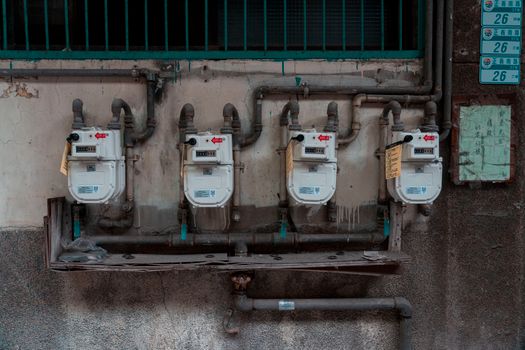
Use this process like a checklist. The goal is to confirm whether you truly have an RF hotspot and to understand why your readings move.
Step 1: Choose a stable testing spot and mark it
Pick a location you suspect is “hot.” Put a piece of tape on the floor (or mark the surface) so you can return to the exact same point. If your meter is sensitive to distance, even 2–3 inches can change results.
Then set your testing conditions:
- Same room temperature (avoid drafts from HVAC if possible).
- Same time window (especially if you’re checking intermittent bursts).
- Keep your body position consistent—don’t pace around while measuring.
Step 2: Take orientation readings (rotate the meter, don’t move the point)
Hold the meter at the marked spot. Without changing your distance, rotate the meter slowly through 0°, 45°, and 90° in a consistent manner. Record each reading.
If the hotspot “moves” only when you rotate, you’re likely seeing polarization or directional antenna response. If the hotspot stays strong across rotations, move to the next steps.
Step 3: Use a distance sweep in controlled increments
Keep the meter orientation consistent and move away in a straight line from the suspected source. Use increments like:
- 12 inches (30 cm)
- 24 inches (60 cm)
- 36 inches (90 cm)
- 48 inches (120 cm)
Look for a pattern. A genuine RF source often shows a gradient: higher near the source and lower farther away. If readings fluctuate wildly at the same distance, it may be intermittent activity or reflections.
Step 4: Confirm intermittency by timing your checks
Set a timer for 2 minutes. During that time, check the reading at consistent intervals (for example, every 10 seconds) at the same spot. Don’t adjust anything except the time.
You’re looking for:
- Short spikes that appear for a few seconds and then drop.
- Gradual drift over 1–2 minutes.
- No change (which suggests a stable broadband source or constant output).
If you see spikes, you’re likely dealing with duty cycle effects. That means your “hotspot” may be real, but your moment of measurement matters.
Step 5: Reduce variables—turn off obvious RF and electrical contributors one at a time
Start with the simplest, least disruptive actions:
- Unplug the router for 30 seconds, then recheck the hotspot.
- If you use a smart plug, turn off the device that’s closest to the suspected hotspot.
- Turn off a nearby TV or streaming box and recheck.
- If the hotspot is near an adapter, unplug it and check again.
Wait 15–30 seconds after each change before taking your reading. Some systems take time to fully stop transmitting or to reboot.
Step 6: Identify whether the hotspot follows a wireless device or a wired power source
Try this practical method:
- If the hotspot tracks a specific device (for example, it’s strongest near the router and weaker when the router is off), it’s likely RF.
- If the hotspot stays near an outlet, charger, or power strip even when wireless devices are off, it may be electrical noise from a switching power supply or wiring.
This is where your troubleshooting becomes more targeted. You’re not just chasing a number—you’re learning what type of source it likely is.
Solutions from simplest fixes to more advanced fixes
Start with the least invasive changes. You’re trying to confirm the hotspot source and reduce exposure (if that’s your goal) without creating new measurement confusion.
1) Reposition the suspected source and recheck immediately
If your router, access point, or smart hub is near where you spend time (desk, bed, couch), reposition it and then recheck using the same marked spot and orientation method.
Try:
- Move the router at least 3–6 feet (1–2 meters) away from the hotspot area.
- Avoid placing it behind a TV or inside a closed cabinet.
- If possible, elevate it 2–4 feet above the floor for more consistent coverage (this can reduce strong near-field peaks at certain angles).
Then run your 2-minute timing test again. If the spikes reduce or the peak shifts, you’ve validated a wireless-source link.
2) Change antenna orientation (router and access point)
Many routers have external antennas. Small angle changes can reduce direct coupling toward your measurement spot.
Try antenna tweaks in 15–30 degree steps, rechecking at the same marked location each time. If your router uses 2.4 GHz and 5 GHz, remember that behavior can differ. You may notice stronger readings on one side of the room.
If you’re using a product like a dual-band mesh system, test one node at a time if you can. Mesh units can create overlapping hotspots that move across the floor plan.
3) Reduce intermittent transmissions by changing usage patterns
If your readings spike at certain times, you may be catching bursts from:
- Phone and laptop roaming between Wi‑Fi bands
- File downloads or streaming
- Firmware updates
- Backups running on a schedule
Try a simple experiment: pause heavy usage for 10 minutes, then recheck. If spikes drop noticeably, your hotspot is tied to activity rather than a constant high-power leak.
4) Replace or relocate switching power supplies and chargers
If your hotspot is near an outlet, charging station, or adapter, unplugging it should reduce the reading. If it does, tackle it directly.
Common practical fixes:
- Move chargers and power strips away from your primary sitting or sleeping position.
- Use a different outlet (avoid testing right next to the same wall plate).
- If safe and compatible, use a lower-noise power adapter or a corded charger that doesn’t run as hot (quality can matter).
You don’t need to “eliminate all EMF.” You’re trying to reduce the strongest contributor at the location you care about.
5) Manage reflections: change the room geometry around the hotspot
If the hotspot appears to move around, reflections are a prime suspect. You can reduce multipath effects by changing the surfaces around the test point.
Try:
- Move the meter and/or source away from metal shelves, mirrors, or radiators.
- Add soft materials (bookshelves with irregular contents, thick curtains, or a rug) near the path between source and measurement point.
- Avoid testing in the middle of a bare hallway where reflections are strong.
Recheck using the same marked spot. If the hotspot becomes more stable (less “walking”), reflections were likely driving the inconsistency.
6) Separate RF sources so you can isolate them
In busy homes, multiple RF sources overlap: Wi‑Fi, Bluetooth, cordless phones, baby monitors, wireless cameras, and smart speakers. Overlap can create a confusing pattern.
A practical isolation approach:
- Turn off one category at a time (for example, disable Wi‑Fi on your phone, then recheck).
- If you can, temporarily disable Bluetooth devices or put them in a different room.
- Unplug wireless cameras or hubs one at a time if they’re near your suspected hotspot area.
Keep notes. When you find the device that causes the peak, you’ll stop chasing ghosts.
7) Calibrate your approach: use consistent hold time and sensor handling
Even if you can’t “calibrate” a consumer EMF meter like lab equipment, you can calibrate your method. This is often the difference between unreliable and repeatable results.
Do the same things every time:
- Hold the meter steady for 5–10 seconds before recording.
- Use the same height (for example, 3 feet / 1 meter above the floor).
- Keep your hand position consistent; avoid covering the sensor area.
- Record the peak value and the average if your meter provides both.
When you standardize your technique, you’ll reduce the “moving hotspot” effect that’s actually caused by measurement inconsistency.
8) Advanced: check for hidden transmitters near the hotspot
If you’ve eliminated obvious devices and the hotspot persists, consider less obvious RF emitters:
- Wireless security sensors with periodic transmissions
- Neighbor routers (especially in dense areas)
- Cellular signal amplifiers or repeaters
- Smart meters and utility communication equipment
- In-wall or behind-wall access points
You can’t always pinpoint these precisely with a handheld meter, but you can still verify behavior. For example, if the hotspot changes at predictable times (like nightly backup windows), it suggests scheduled transmissions.
When replacement or professional help makes sense
Most hotspot troubleshooting is about method and source identification. But there are cases where you should consider upgrading equipment or seeking help.
Replace or upgrade your EMF meter if readings are not repeatable under controlled conditions
Consider replacing (or at least re-evaluating) the meter if:
- You perform the same test (same spot, same orientation, same interval timing) and the readings vary wildly beyond what intermittent duty cycles would explain.
- The meter lacks clear documentation about its frequency range and measurement behavior, making it hard to interpret RF hotspots.
- Your meter has a known calibration issue or battery instability (low battery can cause erratic readings).
If you’re using a product designed for general EMF rather than RF-specific troubleshooting, you may be fighting the wrong tool. Soft recommendation: choose a meter whose specifications match what you’re trying to identify (RF hotspots vs. electrical fields near power supplies).
Seek professional help when you need certainty, not just reduced uncertainty
Professional RF assessments can be useful when:
- You’re dealing with a workplace or compliance requirement.
- You suspect a specific hidden source (like a malfunctioning transmitter, amplifier, or industrial equipment) and need a more comprehensive survey.
- You’re making high-stakes decisions based on the readings and you need traceable methodology.
If you do contact a professional, ask about their measurement approach, frequency coverage, and how they handle multipath/reflections. A good assessment should include a repeatable measurement plan, not just a single “max reading.”
Don’t chase numbers—chase the source
A reliable outcome comes from identifying what changes the reading. If unplugging the router reduces the peak, you’ve found a key contributor. If moving the power adapter changes the reading, you’ve found the electrical noise link. If rotating the meter changes the reading without changing the environment, you’ve confirmed a polarization/geometry effect.
That’s the real purpose of EMF meter readings troubleshooting RF hotspots move recheck reliably: to make your results reproducible enough to act on, not just to “see a number.”
Practical example: troubleshooting a “hotspot” near your desk
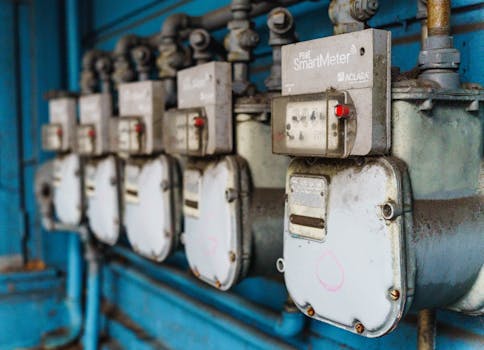
Here’s a realistic scenario you can mirror. You sit at a desk and your meter shows a strong RF peak around your laptop docking area. But when you move 2 feet away, it changes, and sometimes it’s lower. You suspect the Wi‑Fi router because it’s in the same room.
Do this:
- Mark the desk spot where the peak appears.
- Rotate the meter at the same spot (0°, 45°, 90°). You record readings: the peak drops by ~30% at one orientation.
- Do a 48-inch distance sweep in 12-inch steps. You see a general decline, but with noticeable spikes at 12 and 24 inches.
- Run a 2-minute timing check at the peak spot every 10 seconds. You notice spikes every ~20–30 seconds.
- Unplug the router for 30 seconds, then recheck. The peak drops dramatically and the spikes disappear.
Interpretation: the hotspot is real, but it’s shaped by orientation and reflection. The spikes are likely tied to router activity (data bursts). Next, reposition the router 4–6 feet away and re-aim antennas. Recheck with the same 2-minute timing method. If the spikes reduce and the peak becomes lower at your desk, you’ve achieved a measurable improvement.
Notice what you didn’t do: you didn’t “move the meter and hope.” You used controlled changes that proved causality.
Practical example: when the hotspot is actually a charger, not Wi‑Fi
You’re measuring next to a bedside outlet. The meter shows a high value when the phone is charging. When you unplug the phone cable, the reading drops, but the Wi‑Fi router remains on.
Try:
- Leave the phone off the charger for 5 minutes and recheck at the same spot.
- Unplug the charger brick itself and recheck.
- Move the charger to a different outlet and recheck.
If the hotspot tracks the adapter, you’re looking at switching power supply noise or near-field electrical effects. In that case, the “fix” is usually relocation or using a different charger type—rather than moving the router.
Because you’re troubleshooting, the key is the confirmation step: unplug the suspected source and watch the reading respond.
How to keep your RF hotspot checks consistent across days
Even with a solid method, readings can vary from day to day due to network usage, weather, and device schedules. You can still get reliable rechecks by standardizing your routine.
Use this repeatability plan:
- Test at the same time of day (for example, 7:00–7:10 PM) when your home activity resembles your usual pattern.
- Use the same marked spot and the same meter height.
- Record orientation (upright vs. rotated) and keep it consistent.
- Use the same 2-minute timing test window and note the peak and how often spikes occur.
- If possible, keep doors and major furniture positions unchanged for the test window.
After 2–3 test sessions, you’ll start to see stable patterns. That’s when you can make confident decisions about what to change.
Common troubleshooting mistakes that make hotspots seem to “move”
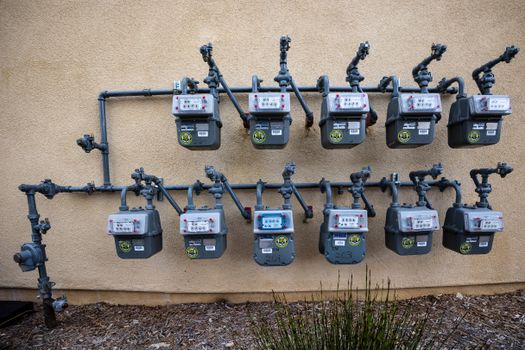
These errors are so common that they’re worth calling out directly:
- Changing more than one variable at a time. For example, moving the meter and rotating it while also unplugging a device. The result becomes impossible to interpret.
- Taking one reading and stopping. If you only check once, you’ll miss burst timing and multipath effects.
- Measuring from inconsistent distances. “Near” is not a measurement. Use a tape measure or consistent increments.
- Holding the meter loosely or covering the sensor. Small handling differences can change the result.
- Assuming all EMF meters measure RF the same way. If your device measures broadband EMF, you may be mixing electrical noise with RF transmitters.
If you avoid these, your hotspot rechecks will become far more reliable.
Where to look first based on what your readings do
Use your meter behavior to decide where to focus your troubleshooting.
If the peak is strongest near a router or wireless hub
Start with orientation and positioning:
- Move your measurement point away from the direct line of the router antennas.
- Re-aim antennas and elevate the router if needed.
- Recheck during low and high network usage times.
If the peak is strongest near chargers, outlets, or power strips
Focus on electrical noise reduction:
- Unplug adapters to confirm the source.
- Relocate chargers away from your primary rest or work zone.
- Consider using higher-quality adapters and avoiding overloaded power strips.
If the hotspot appears to “walk” across a room
Assume reflections and multipath:
- Change surfaces between source and measurement point.
- Use distance sweeps to see if there’s a consistent gradient.
- Rotate the meter at fixed points to separate polarization effects from true movement.
Soft recommendations for better troubleshooting outcomes
You don’t have to buy a new setup to troubleshoot effectively, but the right gear and approach can save time.
- If you’re serious about RF hotspot troubleshooting, prioritize a meter with clear frequency range and a measurement mode that supports RF-focused readings.
- Use the same battery level and avoid low-battery readings; erratic behavior often gets blamed on “hotspots.”
- Keep a simple log: date, time window, reading peak, orientation, and what devices were on or off.
If you’re also shopping for related tools, you may see RF and EMF meters marketed for different goals. Choose based on what you’re actually trying to identify: wireless RF transmitters, or electrical noise from power supplies. That alignment reduces confusion and makes your rechecks more reliable.
When you’ve got it under control
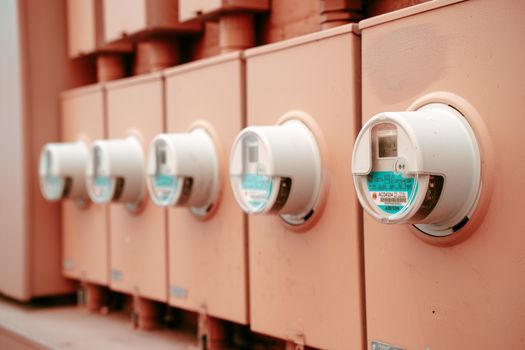
Once your troubleshooting is working, your hotspot checks stop feeling random. You’ll know which changes cause the reading to rise or fall. You’ll be able to move the meter and recheck reliably—without chasing your own measurement artifacts.
The core strategy is simple: move intentionally, recheck consistently, and isolate the source. That turns EMF meter readings troubleshooting RF hotspots from a frustrating guessing game into a practical, repeatable process you can actually use at home.
01.01.2026. 21:44